
Where Is NFC on My Phone? Find the Exact Tap Spot on iPhone, Samsung, Pixel & Motorola
Your phone's NFC reader is not spread across the entire back. Learn where to start on iPhone, Samsung Galaxy, Google Pixel and Motorola, then find the exact Tap spot for your model.
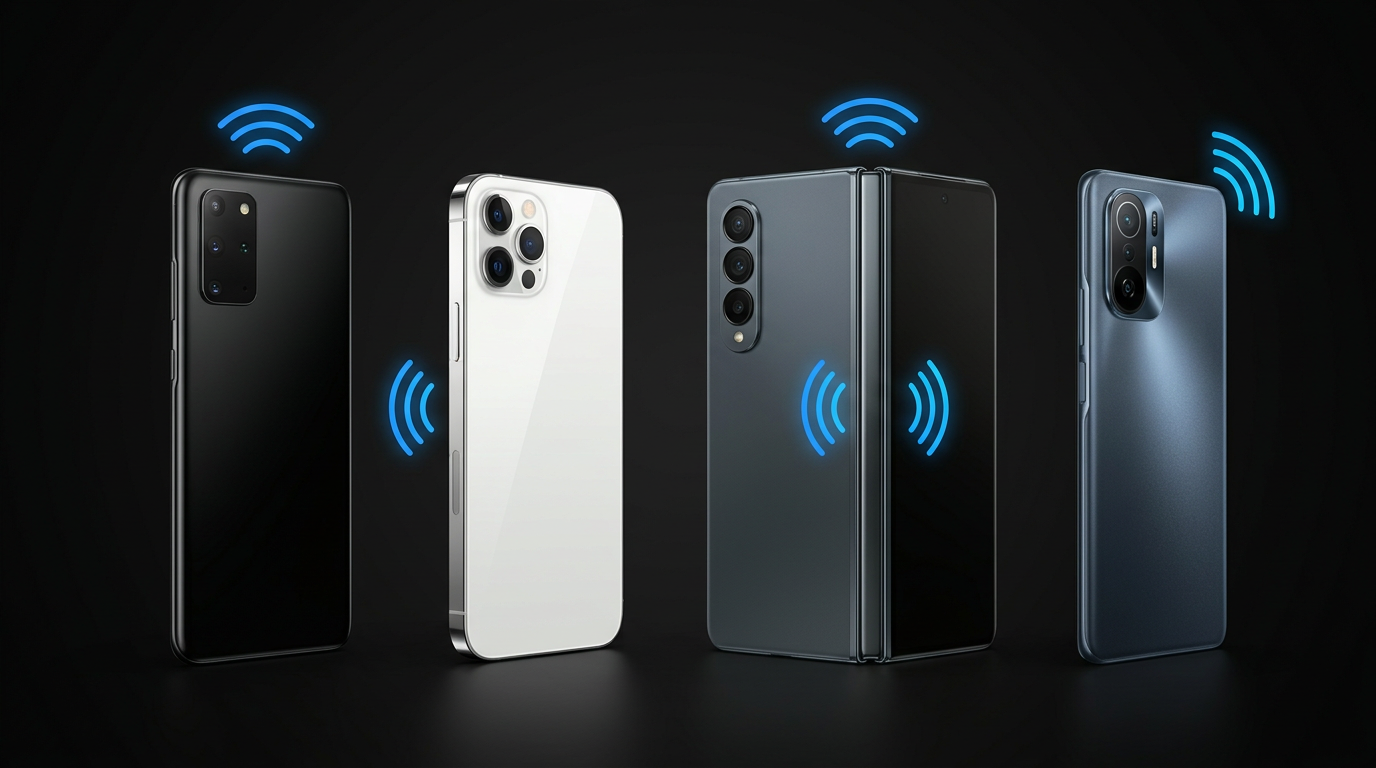
If you have ever moved an NFC card around the back of your phone wondering why nothing is happening, the card might be perfectly fine. You may simply be missing the phone's NFC antenna.
NFC only works over a very short distance, so positioning matters. A phone can read an NFC tag instantly in one spot and do absolutely nothing an inch or two away.
Here is the fastest place to start:
| Phone | Where to Start Tapping |
|---|---|
| iPhone | Top edge and upper-back area |
| Samsung Galaxy | Back of the phone, with the exact position varying by model |
| Google Pixel | Back of the phone, with the exact position varying by model |
| Motorola | Back of the phone, with the exact position varying by model and version |
Those are good starting points, but there is an easier way than moving the phone around until something happens.
Why Does the NFC Tap Spot Matter?
NFC stands for Near Field Communication. It lets compatible devices exchange small amounts of information when they are brought very close together.
Your phone contains an NFC antenna, and an NFC card or tag contains its own antenna.
For the interaction to work reliably, those two areas need to get close enough to each other.
That is the part many people miss.
When someone says, "Tap the card to your phone," it can sound as if anywhere on the back of the phone should work. It usually does not.
Think of your phone's NFC reader as a target hidden underneath the case. Once you know where that target is, using NFC becomes much easier.
Where Is NFC on an iPhone?
If you have an iPhone, start at the top of the phone.
Apple's own Apple Pay instructions tell users to hold the top of the iPhone near a contactless reader. That same general area is the best place to begin when reading a compatible NFC tag.
Instead of placing the middle of your iPhone flat against the tag, bring the upper portion of the phone close to it.
A simple technique is:
- Wake the iPhone.
- Bring the very top of the phone toward the NFC tag.
- Hold it close for a moment instead of quickly swiping past it.
- Watch for the NFC notification.
Do You Have to Turn NFC On on an iPhone?
On newer compatible iPhones, you normally do not need to open a separate NFC reader before reading a properly configured web-link NFC tag.
Apple documents background NFC tag reading on iPhone XS and later. When the phone detects a compatible tag, iOS can display a notification that the user can Tap to continue.
Older iPhones can behave differently depending on the model and software, which is another reason it is useful to check the exact phone rather than relying on a generic iPhone instruction.
Not sure where to Tap yours? Choose your exact iPhone in the NFC Tap Spot Finder.
Where Is NFC on a Samsung Galaxy Phone?
Samsung Galaxy phones require a little more attention because the NFC antenna position can vary between models.
There is no single Tap spot that should be assumed to work on every Galaxy phone.
Samsung's current instructions tell users to place the back of the Galaxy phone near the NFC reader or tag and keep it there briefly. Samsung also provides antenna-placement guidance inside the phone itself.
On supported Galaxy devices, look under:
Samsung says the on-screen guide can show the appropriate antenna position for the device.
That is much more reliable than assuming the NFC reader must be directly behind the Samsung logo.
Samsung NFC Not Responding?
Before blaming the tag, remove a thick or magnetic phone case and try again.
Samsung specifically warns that some third-party covers, magnetic cases, and cases containing cards can interfere with the NFC signal.
Also make sure NFC is turned on under Settings → Connections → NFC and contactless payments.
For the fastest answer, select your exact Galaxy model in the NFC Tap Spot Finder and use the highlighted Tap area instead of guessing.
Where Is NFC on a Google Pixel?
Google Pixel phones also have model-specific NFC antenna locations.
Google actually publishes hardware diagrams showing the NFC component for individual Pixel models. Its current documentation includes newer devices such as the Pixel 11 and Pixel 10a as well as previous Pixel generations.
That is important because it shows why "Tap the middle of every Pixel" is not good advice.
The location can change as Google changes the internal layout of the phone.
If your Pixel does not respond immediately, move the NFC tag around the back of the phone in small increments instead of sliding it rapidly over the entire device.
Better yet, use the exact Pixel model in the Tap Spot Finder.
How Do I Check Whether NFC Is Enabled on a Pixel?
On supported Pixel phones, NFC settings are generally found under:
If you are unsure whether your particular Pixel supports NFC or where its antenna sits, check the specific model instead of relying on directions written for a different Pixel generation.
Where Is NFC on a Motorola Phone?
Motorola is another brand where the exact model matters.
Motorola's own support instructions tell users to bring the back of the phone within about 2 cm of an NFC tag when reading NFC tags on supported devices. Motorola also notes that NFC is not available on every version of every phone. Availability can differ depending on the model and market.
On many Motorola phones, you can check for NFC under:
If there is no NFC option, do not automatically assume something is wrong with your phone. Some models or regional versions simply do not include NFC hardware.
If the phone does support it, the NFC sensor area is generally on the back of the device, but the precise location should be checked for that particular model.
The Easiest Way to Find Your Exact NFC Location
You could search for a hardware diagram every time someone hands you a different phone.
Or you can just select the phone.
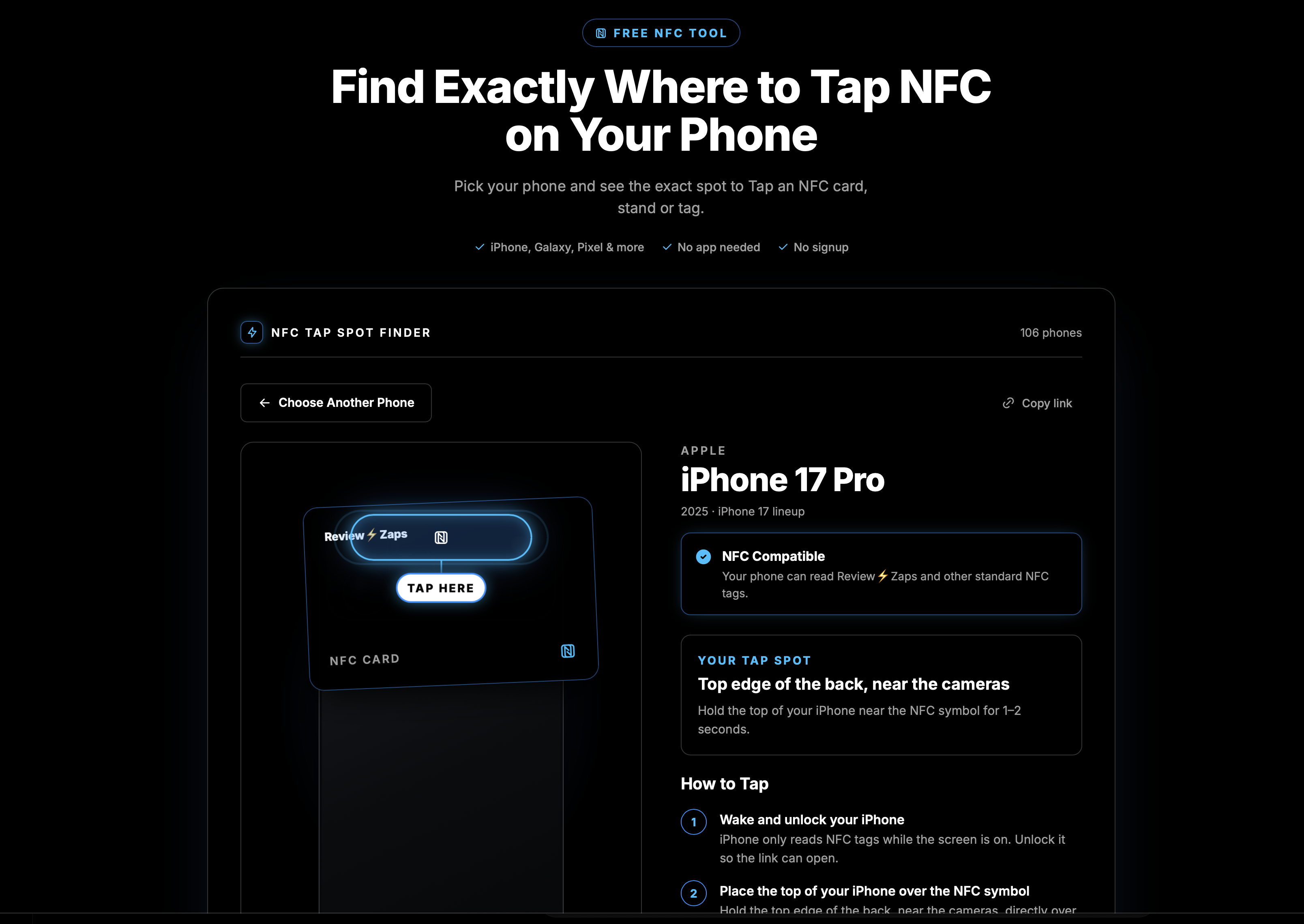
We built the ReviewZaps NFC Tap Spot Finder specifically for this problem.
Choose the manufacturer and phone model, and the tool can show you:
- Whether the phone supports NFC
- The area of the phone to Tap
- A highlighted TAP HERE location
- Model-specific instructions
- NFC settings where applicable
- Case and accessory warnings
- Troubleshooting information
The tool currently includes popular models from Apple, Samsung, Google Pixel, Motorola, and OnePlus.
How to Test the NFC Tap Spot
Once you think you have found the correct location, test it deliberately.
Do not wave the phone over the NFC tag.
Instead:
- Wake the phone and unlock it.
- Bring the suspected NFC area directly over the tag.
- Get very close to the tag.
- Hold the phone still for a moment.
- If nothing happens, move about half an inch and try again.
Small movements are much more useful than quickly rubbing the entire phone across the tag.
Once you find the correct location, remember where it is. The next Tap will usually feel much easier.
What If the Phone Still Will Not Read the NFC Tag?
The wrong Tap location is one of the most common things to check, but it is not the only possibility.
Before deciding the NFC tag is defective, try these three quick checks.
Remove the Case
A normal thin case may work perfectly, but thick cases, magnetic accessories, metal components, or cards stored inside wallet cases can make NFC less reliable.
This is specifically included in Samsung's own NFC troubleshooting guidance.
Check NFC Settings on Android
Many Android phones allow NFC to be turned on or off.
Search your phone's Settings app for NFC if you cannot find the option manually.
Slow Down
NFC is fast once a connection is made, but that does not mean you should swipe the phone past the tag as quickly as possible.
Bring the correct portion of the phone close to the tag and give it a moment to respond.
If those checks do not solve the problem, the next step is proper NFC troubleshooting rather than continuing to guess at the antenna position.
Why NFC Tap Position Matters for Google Review Cards and Stands
Knowing the Tap spot is especially useful when NFC is being used in front of customers.
For example, a business might use an NFC product to open its Google review page without asking the customer to search for the business manually.
A ReviewZaps NFC Google Review Card works well for mobile professionals, contractors, technicians, cleaners, landscapers, salespeople, and other people who ask for reviews away from a checkout counter.
The card stays in a wallet or pocket and can be reused whenever it is needed.
A ReviewZaps NFC Google Review Stand makes more sense when customers consistently pass the same location, such as a reception desk, checkout counter, salon station, coffee shop counter, clinic, gym, or auto service desk.
It stays visible at the point of interaction so a customer can Tap before leaving.
With either option, the NFC interaction is simple once the customer knows where to Tap their phone.
ReviewZaps products require no app or subscription. The customer simply Taps with a compatible phone and follows the prompt to the business's Google review page.
Where to Tap NFC on Your Phone: Quick Recap
If you are trying to figure out where NFC is on your phone, do not assume the entire back of the phone is the reader.
Start here:
- iPhone: Use the top portion of the phone.
- Samsung Galaxy: Use the back of the phone and check the model-specific antenna position.
- Google Pixel: Check the exact Pixel model because antenna placement can change.
- Motorola: Use the back of the phone and verify NFC support for your particular model or version.
A small change in position can be the difference between an immediate NFC response and nothing happening at all.
If you would rather skip the trial and error, select your exact phone in the free ReviewZaps NFC Tap Spot Finder and see where to Tap.


