
Why Won't My Phone Read an NFC Tag? 10 Things to Check Before You Blame the Tag
If your phone won't read an NFC tag, the tag may not be the problem. Work through these 10 quick checks for Tap position, settings, cases, compatibility and interference.
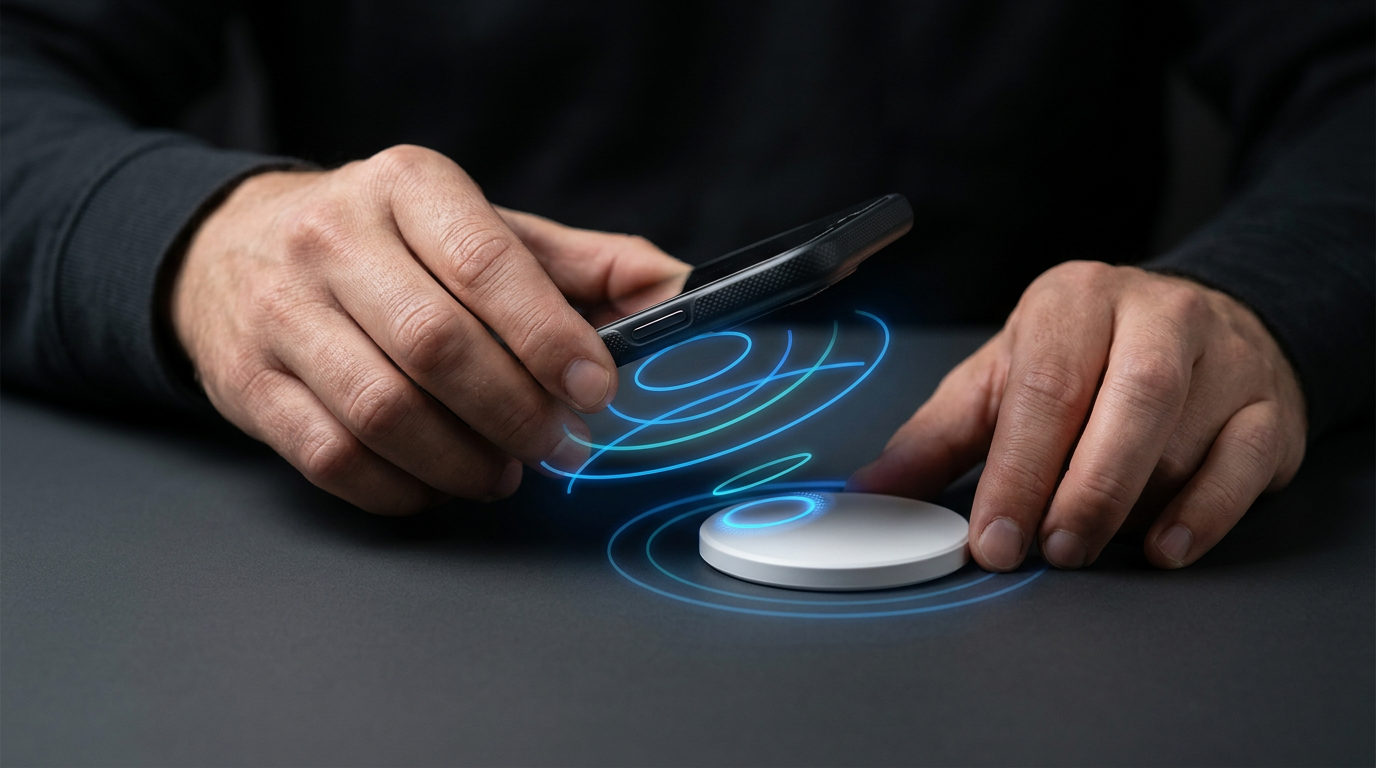
A failed NFC Tap can be surprisingly simple to fix.
The phone may be an inch away from the correct reading area. NFC might be turned off. A magnetic wallet case could be getting in the way. Or the phone may not support NFC at all.
Before deciding the NFC tag is bad, work through these checks in order.
1. Make Sure You're Tapping the Right Part of the Phone
Start here.
The NFC antenna does not cover the entire back of a smartphone. It occupies a specific area inside the device, and that position changes between manufacturers and sometimes between models from the same manufacturer.
For example:
- iPhones generally read NFC near the top of the phone.
- Samsung Galaxy antenna locations can vary by model.
- Google Pixel antenna locations can vary by generation.
- Motorola NFC availability and antenna placement can vary by model.
If you're Tapping the middle of the phone simply because that's where the logo is, you may be nowhere near the NFC antenna.
This is exactly why we built the NFC Tap Spot Finder.
Select the phone model, locate the highlighted Tap area, and try again before changing anything else.
If you want a deeper explanation of why the position changes, see our guide to where NFC is located on your phone.
2. Wake and Unlock the Phone
For troubleshooting, make the test as simple as possible:
- Wake the phone.
- Unlock it.
- Return to the home screen.
- Try the NFC tag again.
Apple supports background NFC tag reading on iPhone XS and later, but background reading still depends on the state of the phone. Apple notes (opens in a new tab) that NFC background reading is unavailable in certain situations, including when the device has not been unlocked after restarting.
Even when a phone can technically detect NFC from another state, testing it while awake and unlocked removes another variable.
3. Stop Swiping the Phone Past the Tag
NFC is fast, but that does not mean the best technique is to wave the phone over the tag.
Move the correct NFC area toward the tag and hold it there briefly.
NFC is designed for very short-range communication. Motorola (opens in a new tab), for example, tells users to bring the back of a supported phone within approximately 2 cm of an NFC tag.
Try this:
- Find the likely NFC area.
- Bring it directly over the tag.
- Get very close.
- Hold still for a moment.
- Move slightly and try again if nothing happens.
Small, deliberate movements work better for troubleshooting than rapidly sliding the phone across the entire tag.
4. Check Whether NFC Is Turned On
This mainly applies to Android phones.
On a Google Pixel, Google currently directs users (opens in a new tab) to:
Then make sure Use NFC is turned on. Google also says that if the NFC setting does not appear, the phone does not have NFC.
Samsung Galaxy devices also provide NFC controls in the phone's connection settings, although menu names can vary by model and software version. Samsung recommends (opens in a new tab) turning NFC off and back on when troubleshooting.
Motorola similarly places NFC controls under Connected devices on supported models.
What About iPhone?
For compatible web-link NFC tags on newer supported iPhones, there is no Android-style NFC setting you normally need to switch on before Tapping.
Apple's background tag reading system can detect compatible NFC tags automatically on iPhone XS and later when the required conditions are met.
5. Confirm That the Phone Actually Supports NFC
NFC is common, but it is not universal.
This matters particularly with:
- budget Android phones
- older devices
- different regional versions of the same phone
- certain carrier or market variants
Google states that if the NFC option does not appear in a Pixel's connection settings, the device does not have NFC.
Motorola gives similar guidance and notes that NFC may be available only on certain versions of a phone sold in certain countries.
So before spending 20 minutes trying different Tap positions, confirm that the exact phone model actually contains NFC hardware.
Our NFC Tap Spot Finder can help with this too.
6. Remove the Case, Wallet, Magnets or Cards
Your phone case may be the problem.
A normal thin protective case often causes no issue at all. But NFC can become less reliable when you introduce things such as:
- thick cases
- magnetic accessories
- metal components
- wallet cases
- credit cards stored against the phone
- magnetic phone mounts
Samsung specifically recommends removing cases or accessories containing magnets, cards, or metal when troubleshooting NFC.
Google also warns that a payment card or another NFC chip sitting close to a Pixel's NFC sensor can trigger the sensor repeatedly and interfere with contactless use.
Take the phone completely out of the case and test the NFC tag again.
If it suddenly works, you have found the problem.
7. On iPhone, Check What Else the Phone Is Doing
An iPhone can support background NFC reading and still temporarily refuse to scan a tag.
Apple documents (opens in a new tab) several situations where background NFC tag reading is unavailable, including when:
- Apple Pay or Wallet is in use
- the camera is in use
- Airplane Mode is enabled
- another Core NFC reader session is running
- the iPhone has not been unlocked since restarting
If your iPhone was just being used for something else, return to the home screen, make sure Airplane Mode is off, and try the NFC tag again.
You usually do not need to start changing a bunch of settings.
Simplify what the phone is doing and test again.
8. Check What the NFC Tag Is Sitting On
Sometimes the problem is not the phone or the tag.
It is the surface behind the tag.
Standard NFC antennas can be affected by nearby metal. NXP, a major NFC semiconductor manufacturer, explains that metal close to an NFC antenna can create opposing currents, absorb power, and detune the antenna. Special shielding or NFC designs intended for metal environments are used to address this.
If you are testing a loose NFC sticker or tag that has been placed directly on:
- a metal counter
- a steel cabinet
- metal equipment
- a vehicle body panel
- another large metallic object
move the tag away from that surface and test it again.
If it works once removed, the tag itself may be fine.
This is especially important with generic NFC stickers. Products intended for particular surfaces can be designed differently.
9. Try the Same Tag With Another Compatible Phone
This is one of the fastest ways to isolate the problem.
If Phone A will not read the tag, try Phone B.
If the second phone reads it immediately
The tag is probably functioning, and you should focus your troubleshooting on:
- Tap position
- NFC settings
- compatibility
- phone case
- accessories
- the original phone
If neither phone reads it
Now the tag becomes a more reasonable suspect.
But there is still one more useful test.
10. Try a Different NFC Tag With the Same Phone
Flip the test around.
Use the original phone and try another NFC tag that you know works.
That gives you a simple comparison:
Phone reads other NFC tags, but not this one:
The individual tag, its programming, or its environment may be the issue.
Phone reads none of the NFC tags:
The phone, its settings, compatibility, position, or accessories are more likely to be involved.
Tag triggers the phone, but the webpage does not open:
That may not be an NFC-reading problem at all. The phone successfully detected the tag. The issue could instead involve the web address, internet connection, browser behavior, or the data stored on the tag.
Testing one variable at a time is much faster than randomly changing everything.
So When Might the NFC Tag Actually Be Bad?
NFC tags can fail.
Physical damage, manufacturing defects, improper programming, damage to the antenna, or an unsuitable installation environment can all create problems.
But "my phone didn't read it on the first Tap" is not enough evidence to conclude that the tag is defective.
A much stronger test is:
- verify the phone supports NFC
- use the correct Tap position
- remove interfering accessories
- move away from metal
- try another compatible phone
- compare against another working NFC tag
If the same tag repeatedly fails across several compatible phones while other NFC tags work normally, then investigating the tag itself makes sense.
Troubleshooting a Google Review Card or Stand?
The same NFC basics apply when someone Taps a Google review product.
With a ReviewZaps NFC Google Review Card or Stand, the goal is to make the path to the business's Google review page easier. The customer still needs a compatible NFC phone and needs to Tap the correct area of that phone.
For mobile professionals, contractors, technicians and service businesses, the NFC Google Review Card provides a portable option that can stay in a wallet or pocket.
For checkout counters, front desks, reception areas and other fixed locations, the NFC Google Review Stand stays visible where customers interact with the business.
ReviewZaps products require no app or subscription.
If someone has trouble Tapping either product, start with the phone rather than assuming the NFC product has failed.
NFC Tag Not Working? Use This Quick Order
If you want the shortest possible troubleshooting process, use this order:
- Find the correct NFC Tap spot.
- Wake and unlock the phone.
- Hold the phone close and still.
- Check that NFC is enabled on Android.
- Confirm the exact phone supports NFC.
- Remove the case and accessories.
- Exit anything that may temporarily block NFC on iPhone.
- Move the tag away from metal.
- Test the tag with another phone.
- Test the phone with another tag.
That sequence should tell you much more than repeatedly Tapping the same spot and hoping something changes.
And if step one is the problem, you do not need to guess.
Use the free NFC Tap Spot Finder to choose the exact phone and see where to Tap.


